Airgap Audio is a 100% offline music player for the audio files already on your device. There are no accounts, no streaming, no ads, and no tracking. The app does not even request the internet permission — your library and your listening never leave your phone.
Getting Started
Open the app. On first launch, tap Allow access to let Airgap Audio read the audio files on your device.
Airgap Audio scans your device’s media storage and lists everything it finds in the Library.
Use the bottom tab bar, or swipe left/right on the page, to move between sections.
The tabs, in order, are: Library · Playlists · Playing · Settings · About.
Airgap Audio plays the music that is already on your device. It works fully offline and never sends your library anywhere.
Library
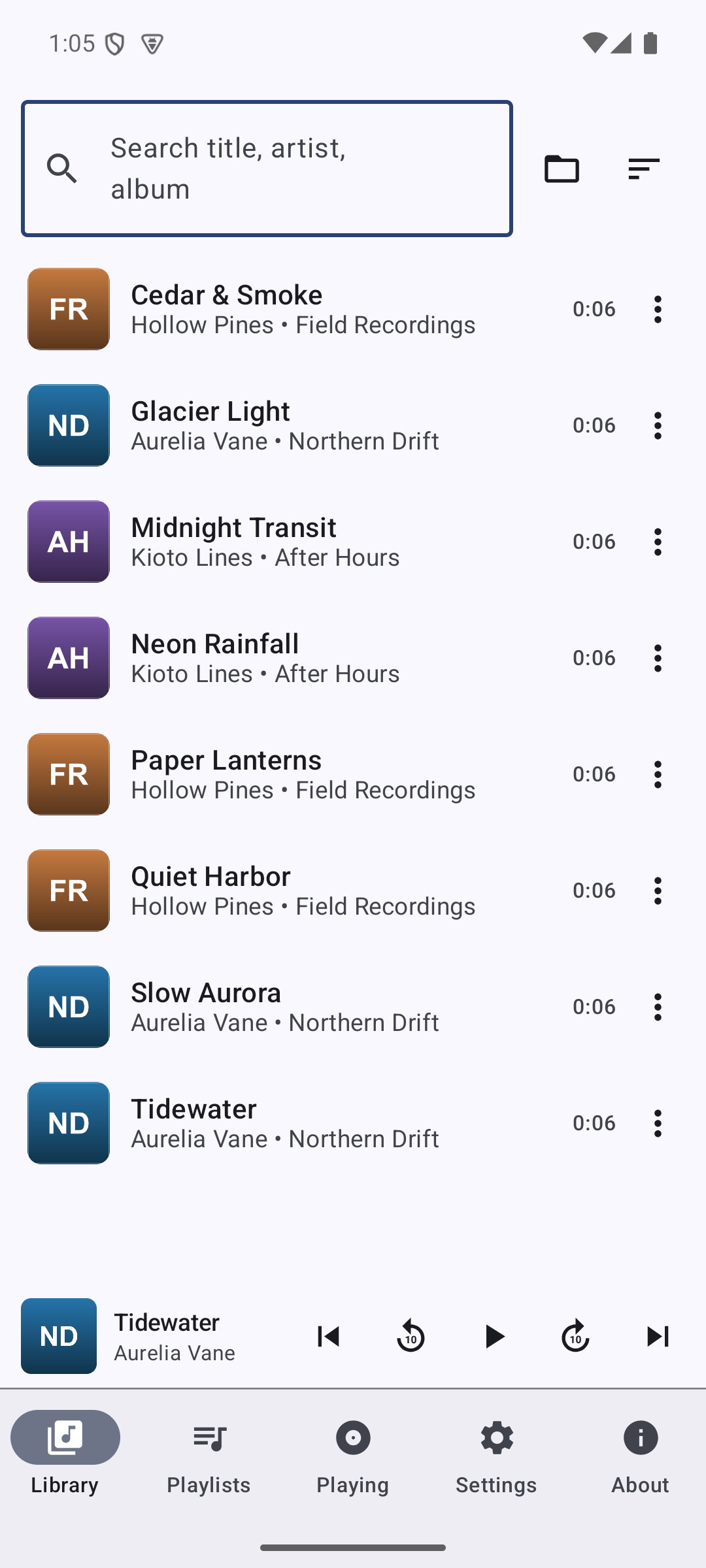
Every audio track Airgap Audio found on your device, ready to play.
Library tab — every track on your device, with search, folder filter, and sort.
Tap a song to start playing it and jump to the Playing tab.
Play all starts the whole list from the top.
Search by title, artist, or album with the search field; Clear search resets it.
Filter by folder to narrow the list to a single folder (All folders shows everything).
Tap a song’s ⋮ options to Add to playlist (or add it to a brand-new playlist on the spot).
Select songs lets you multi-select several tracks at once and batch-add them all to a playlist.
Playlists
Your offline mixes, built entirely from the songs on your device.
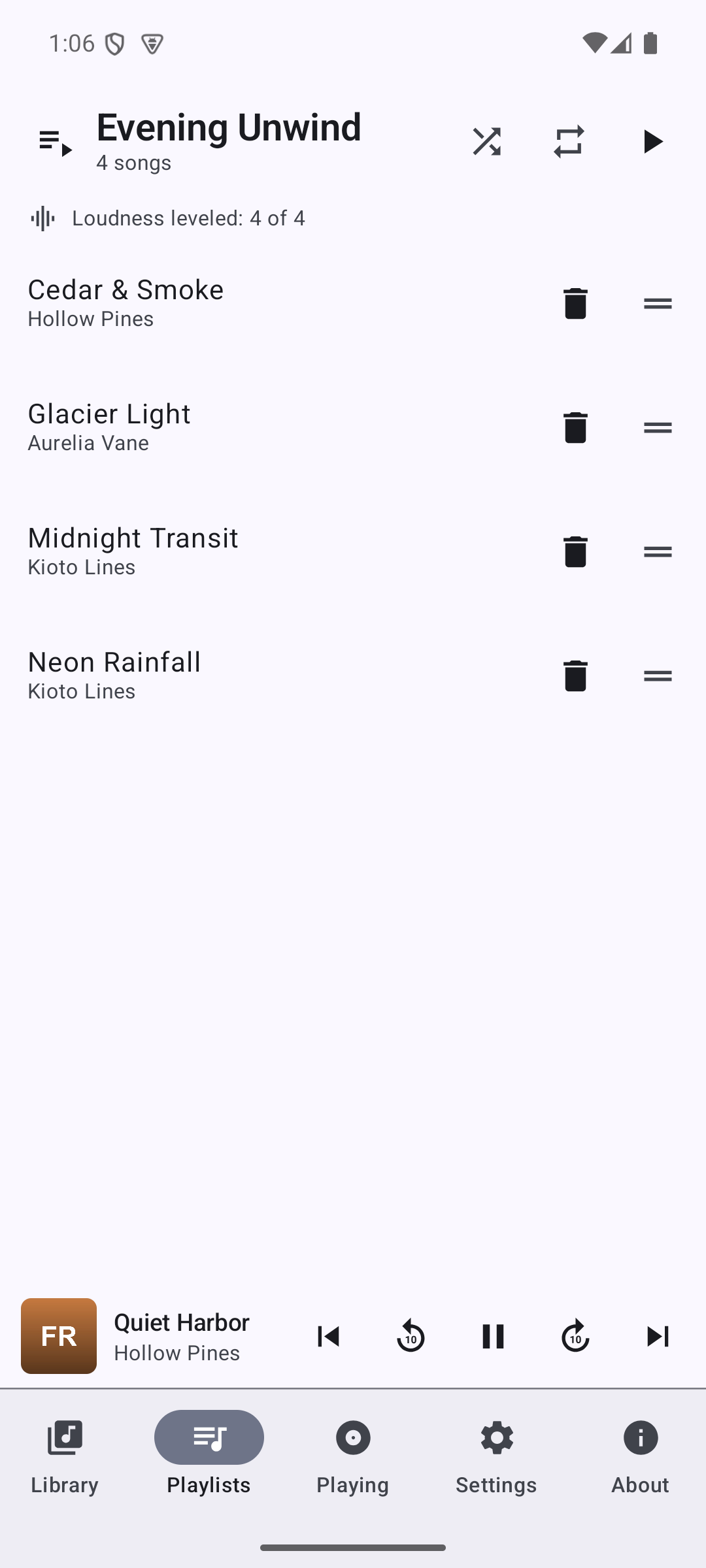
Playlist detail — shuffle / repeat / play, the loudness row, and drag-to-reorder tracks.
Tap New playlist to create one, then add songs from your Library (via a song’s ⋮ options or Select songs).
Tap a playlist to open it and see its tracks.
A playlist’s ⋮ options let you Rename or Delete it.
Play all plays the playlist; Remove from playlist drops a track.
Reorder
Open a playlist and choose Reorder to drag tracks into the order you want.
The new order is saved automatically and used the next time you play the playlist.
Shuffle
Toggle Shuffle per playlist. When on, the playlist plays its tracks in a random order.
Repeat
Each playlist remembers how it should behave when it reaches the end:
Repeat all — start the playlist over from the beginning.
Repeat one — keep repeating the current track.
With both off, playback stops at the end of the playlist.
Playing
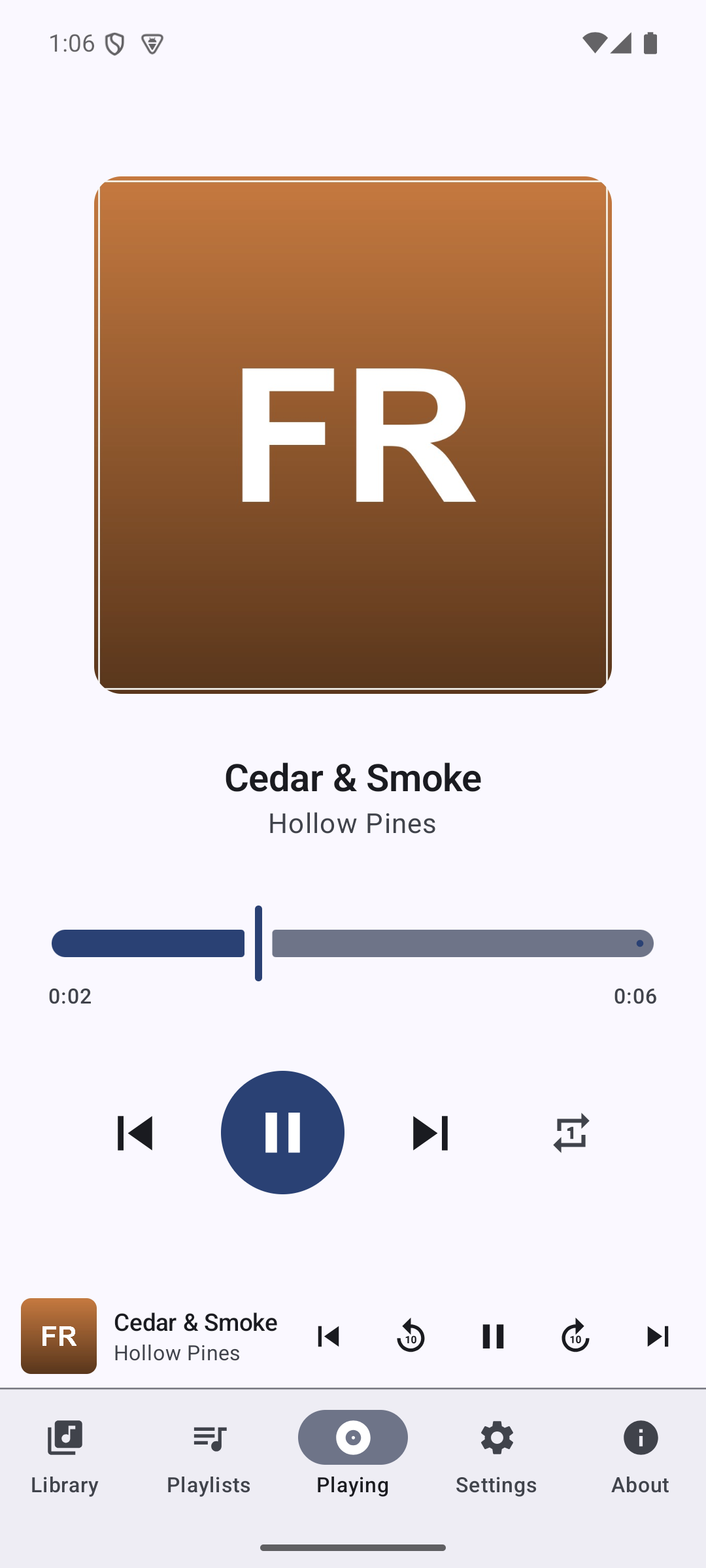
The full-screen player for whatever is currently playing.
Playing tab — album art, scrubber, and transport controls, with the mini-player below.
Album art, title, artist, and a scrubbable progress bar.
Play / Pause, Previous, and Next controls.
The back / forward buttons skip within the current track by the Skip amount you set in Settings.
Drag the progress bar to scrub to any point in the track.
Playback continues in the background with a notification, and responds to headset/Bluetooth controls.
When nothing is queued yet, this tab invites you to pick a song from your Library.
A mini-player also appears above the tab bar while something is loaded, so you can pause/resume and reopen the full Playing view from anywhere in the app.
Settings
All preferences are stored locally on your device.
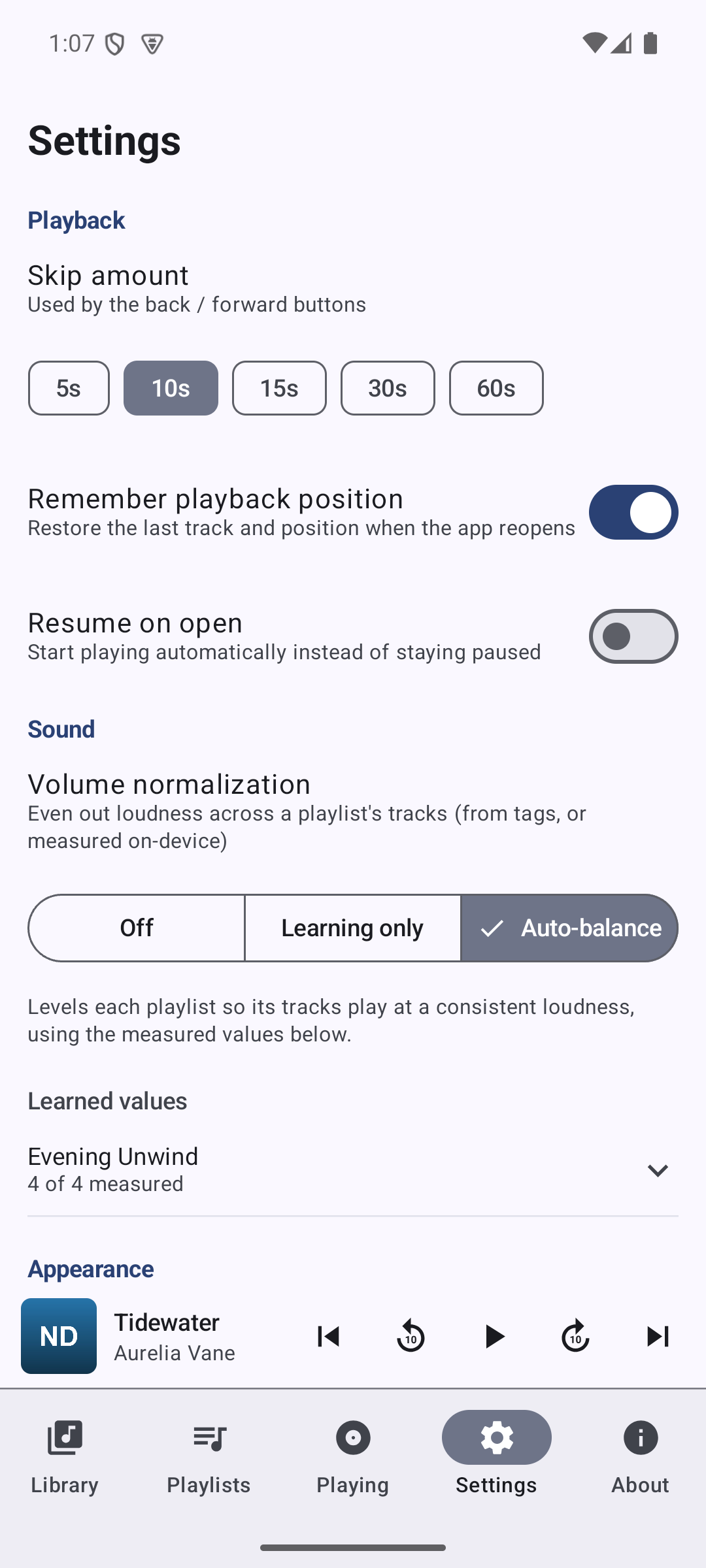
Settings tab — playback, volume normalization, and appearance.
Playback
Skip amount — how far the back / forward buttons jump within a track.
Remember playback position — restore the last track and position when you reopen the app.
Resume on open — when Remember playback position is on, start playing automatically instead of staying paused.
Sound — Volume normalization
Evens out loudness across a playlist’s tracks, using values read from file tags or measured on-device. Three modes:
Off — playlists play at each track’s original volume.
Learning only — measures a playlist’s tracks (when you open or play it) without changing playback yet, so you can review the values.
Auto-balance — levels each playlist so its tracks play at a consistent loudness, using the measured values.
Under Learned values you can expand any playlist to see each track’s measured loudness (in LUFS), the gain Auto-balance would apply, and whether the value came from a file tag or from on-device analysis. Tracks that haven’t been measured yet show a dash.
All loudness measurement happens on your device. Nothing is uploaded.
Appearance
Theme — System, Light, or Dark.
About
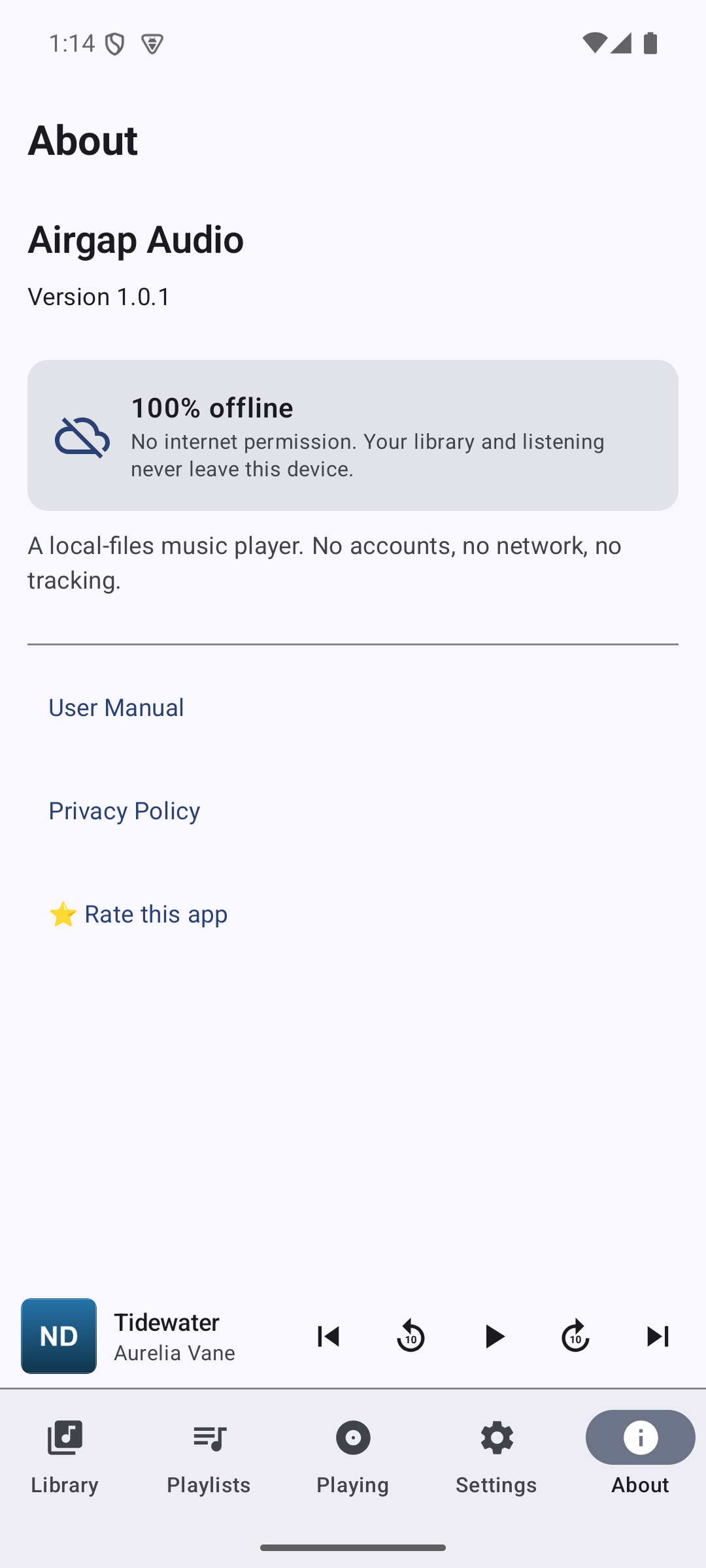
App name and version, the 100%-offline guarantee, and quick links to the User Manual, Privacy Policy, and Rate this app on Google Play. Opening any of those links hands the address to your browser or the Play Store app — the app itself still makes no network connections.
About tab — version, the offline guarantee, and the User Manual / Privacy Policy / Rate links.
Privacy and Data
Airgap Audio reads the audio files already on your device and stores your playlists and preferences locally. It has no internet permission, no accounts, no analytics, no advertising, and no crash-reporting SDKs. See the Airgap Audio Privacy Policy for details.
Troubleshooting
No songs appear: make sure you granted audio/storage access, and that the files are saved in your device’s media storage. Newly added files may take a moment to be indexed by the system.
A song won’t play: the file may be a format your device’s media framework doesn’t support, or it may be corrupted.
Playback stops in the background: check your phone’s battery-optimization settings and allow Airgap Audio to keep running.
Loudness values show a dash: open or play the playlist once in Learning only or Auto-balance mode so its tracks can be measured.